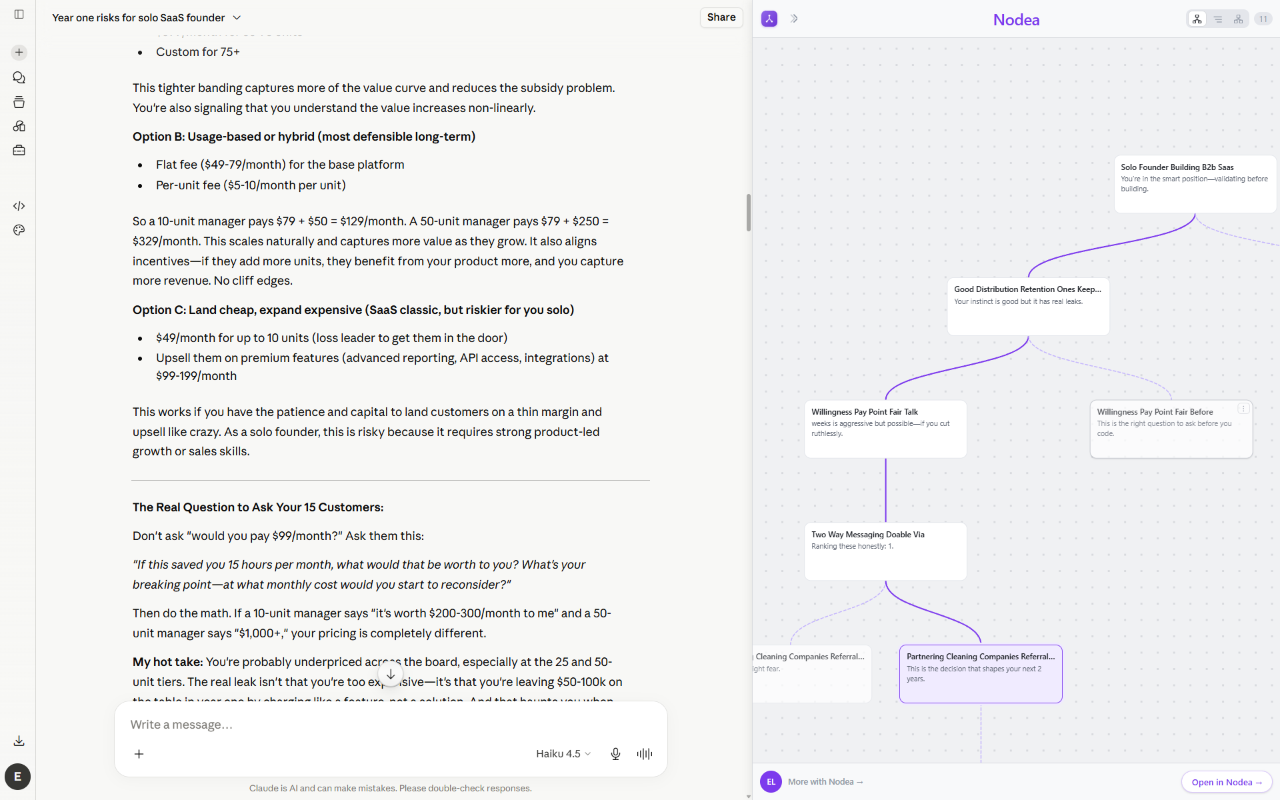
Every time you edit a prompt or regenerate a reply in Claude.ai, you create a branch. Claude keeps all of them — but it only ever shows you one path at a time, behind a pair of tiny < / > arrows that are easy to miss. The shape of your exploration is real, stored, and almost completely invisible.
Nodea Tree for Claude is a free Chrome extension that reconstructs that hidden tree and draws it right beside your conversation — then, on one click, imports the whole thing into the Nodea canvas where you can actually fork, merge, and keep working.
Want to see your own Claude tree?
Install the free extension, open any Claude.ai chat you’ve edited or regenerated, and watch its hidden branches appear.
Add to Chrome — Free →The tree hiding inside every Claude conversation
Under the hood, a Claude conversation isn’t a list — it’s a tree. Each message is a node, and a node can have more than one child. When you regenerate an answer, Claude adds a second child to the same parent. When you edit one of your own messages and resend, you create a second branch from that point. The version you’re reading is just whichever path from the root to a leaf happens to be selected right now.
That means most active Claude users are sitting on a sprawling tree of abandoned and alternative branches they’ve never been able to see all at once. The good ideas you regenerated past are still in there. So are the tangents you backed out of.
Why you can’t see it in Claude.ai
Claude.ai’s interface is built to show one linear thread. The branch navigation is deliberately minimal: a small counter like 2 / 3 with arrows to step between siblings. It works for flipping between two regenerations of a single reply. It falls apart the moment your exploration has depth — branches off branches, three directions from one question, an edit you made twenty messages ago.
There’s no overview, no map, no way to ask “what were all the directions I tried here?” The information exists; the interface just never surfaces it. (We broke down the same problem, and the manual workarounds, in how to fork a ChatGPT or Claude conversation.)
What the extension draws beside your chat
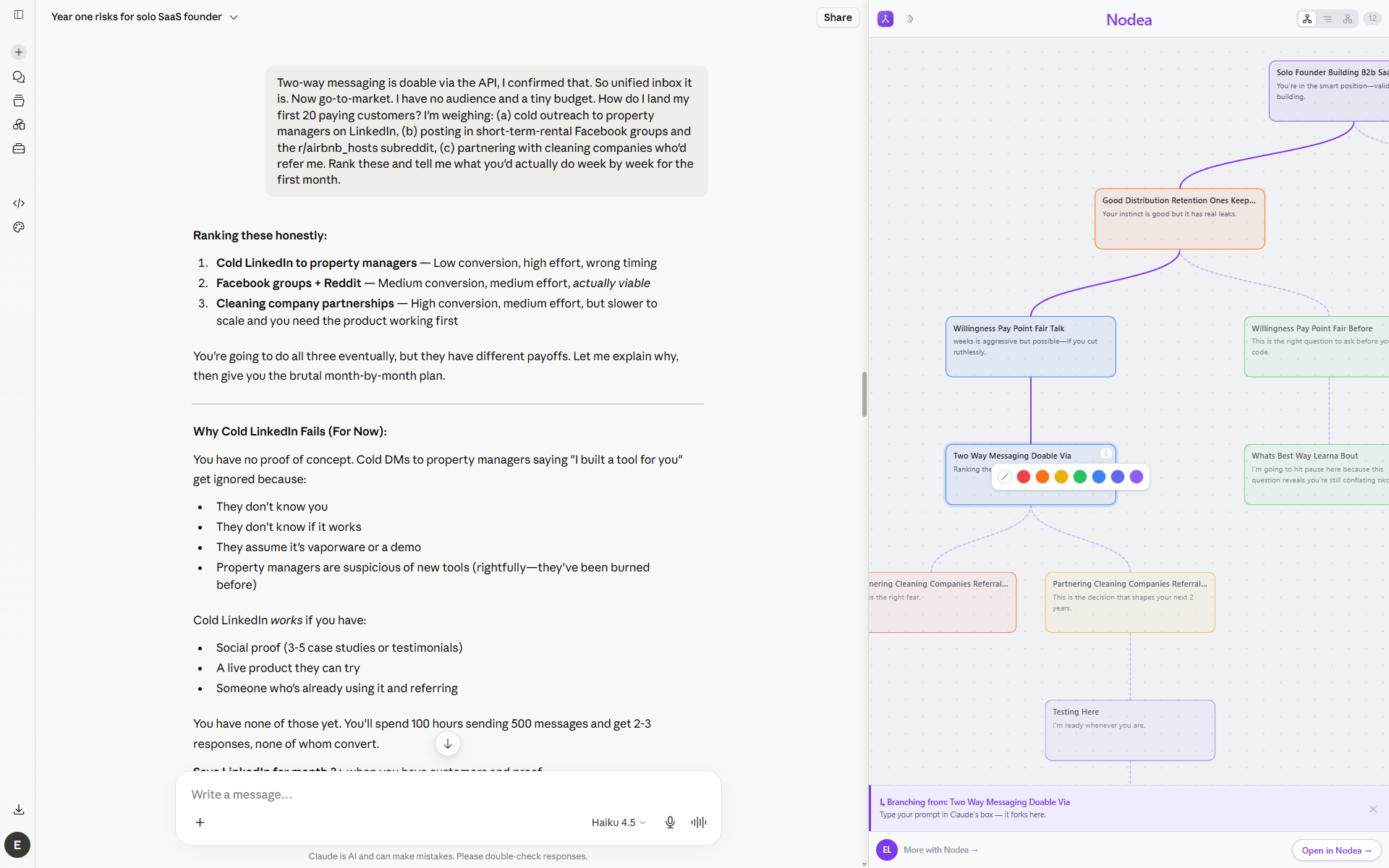
Open a Claude.ai conversation with the extension installed and a panel docks alongside the chat. It reads the conversation through your own logged-in session, reconstructs the full branch tree from Claude’s own edit and regeneration history, and renders it as a visual map:
- Every branch, visible at once. The whole shape of the conversation — not just the path you’re currently on.
- Jump to any node. Click a branch in the tree to see where it sits in the conversation.
- Color-code paths. Mark the branches that matter so a big tree stays readable instead of becoming a wall of identical boxes.
From viewing a tree to working in one
Seeing the tree is the hook. The reason it matters is what comes next: a “Open in Nodea” button that imports the entire conversation — every branch — into your Nodea canvas as a real, editable tree. The viewer is read-only by nature; Nodea is where the tree becomes something you can think in.
Once it’s in Nodea, you can:
- Fork from any node — user message or AI reply, no edit tricks.
- Merge branches back into one node so the AI answers with all of that context combined.
- Switch Claude models per branch — Haiku for fast passes, Opus for the heavy thinking.
- Search everything across all your conversations, by keyword or meaning.
See the full list of what the canvas adds on the extension page.
How to install it
- Open the Nodea Tree for Claude listing on the Chrome Web Store and click Add to Chrome.
- Go to claude.ai and open any conversation where you’ve edited a prompt or regenerated a reply.
- The Nodea panel docks beside the chat and draws its branch tree. Click Open in Nodea to import it into your canvas.
Turn your Claude history into a tree.
Free on the Chrome Web Store. Works on any claude.ai conversation.
Add to Chrome — Free →Is it safe? What it can and can’t see
The extension only works on claude.ai, and it reads the conversation you currently have open through your own logged-in session — the same way the page itself loads it. It’s read-only: it reconstructs and displays the tree locally in your browser.
No conversation text is sent to Nodea’s servers unless you explicitly click to import a conversation into your account. The extension is not affiliated with Anthropic. If you never click “Open in Nodea,” it stays a pure local viewer.
FAQ
Does Claude.ai have a conversation tree or branch view?
Not a visible one. Claude stores the branches you create by editing or regenerating, but only exposes them through small previous/next arrows on a single message. There’s no map of the whole tree — which is exactly the gap this extension fills.
Will it show branches in conversations I’ve already had?
Yes. The tree is reconstructed from Claude’s existing history, so open an old conversation you edited or regenerated and its branches appear. If a conversation was perfectly linear (no edits, no regenerations), the tree is simply a straight line — there were no branches to reveal.
Do I need a Nodea account to use the extension?
You can install it and view your Claude trees without one. You only need a (free) Nodea account when you want to click Open in Nodea and import a conversation into the canvas to fork and merge it.
Does it work in browsers other than Chrome?
It’s published on the Chrome Web Store, so it works in Chrome and Chromium-based browsers (Edge, Brave, Arc) that can install Chrome Web Store extensions.
What’s the difference between the extension and the Nodea app?
The extension captures and shows the tree hidden in a Claude.ai chat. The Nodea app is where that tree becomes editable — forking, merging, sticky notes, color, search, and cross-chat memory. The extension page lists everything the full canvas adds.